







[av_textblock size=” font_color=” color=”]
In a print program, several PDF-based print forms are created for a customer. The forms should all be combined into a single PDF file and sent via email.
Author: Torsten Thon
-
Bundle multiple SAP Adobe forms into one PDF file
-

DELL goes out of the printer business
[av_textblock size=” font_color=” color=”]
Take care when purchasing new printers.Dell plans to move out of the printer business – at least in Europe and Asia. At the moment, there are residuals at reduced prices. Repairs, spare parts and toner should be passed on.
-

Experience with migrating an SAP system to a HANA database
[av_textblock size=” font_color=” color=”]
Recently, one of my clients has set up the migration of his SAP system to a HANA database. Since I have made many developments on this system, I have accompanied the project in its 8 months of project duration. -

SAP Adobe Forms Header of a table is missing from the second page
On SAP Adobe Forms output, table header does not display after second page if HeaderRow Pagination and Binding configurations are not correctly filled. On Adobe Form outputs if table header line HeaderRow of Table object is shown only on first two pages and missing after second page, ABAP programmer should check if below property settings are done for the table HeaderRow.
-

Clear SAP Adobe Form Cache
[av_textblock size=” font_color=” color=”]
When developing an Adobe Form form, it is sometimes useful to clear the Adobe Form Cache. -

Create print preview in SAP from an external OMS
[av_textblock size=” font_color=” color=”]
For some SAP users, SAP forms are not generated with SAP internal form tools (SAP Script, Smart Forms, Adobe Forms), but the form generation is done via an external output management system (OMS). The external OMS may be Jetforms, Formscape, Streamserve or the TDS (Tentacle Document Server). -
Printing of MICR characters with SAP Adobe Forms
[av_textblock size=” font_color=” color=”]
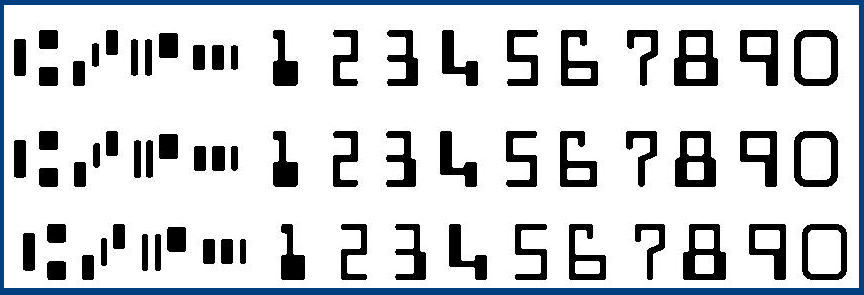
When you program check forms for the USA or Canada, you have to print certain characters with a MICR font (Magnetic Ink Character Recognition). In the US and Canada, checks are printed on inkjet printers with magnetized ink so that they can be read-in by the banks. -
SAP® Print Control in Automated Packaging Lines: Spool or File-Based Printing?
SOLIDFORMS INSIGHTS · SAP® FORMS · LABEL PRINTING · PRACTICAL EXPERIENCE
SAP® Print Control in Automated Packaging Lines: Spool or File-Based Printing?
How to reliably match delivery notes, invoices and labels to the correct package—and why the print architecture is critical to process reliability.
Key topics: SAP® spool · Label printing · PLC integration · Barcode scanners · Print-and-apply systems · Process reliability
When SAP® Forms Are Triggered by External Systems
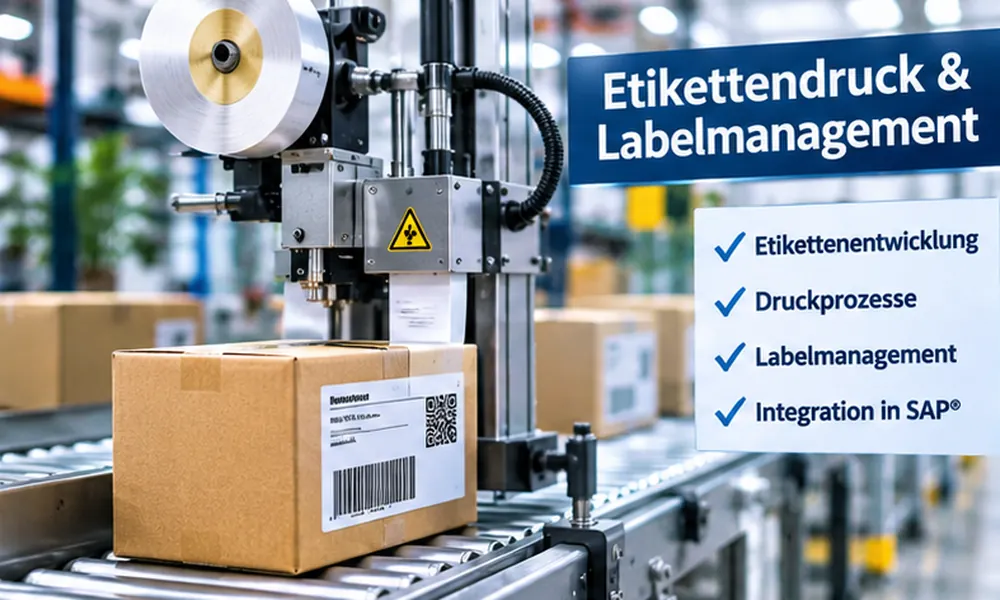
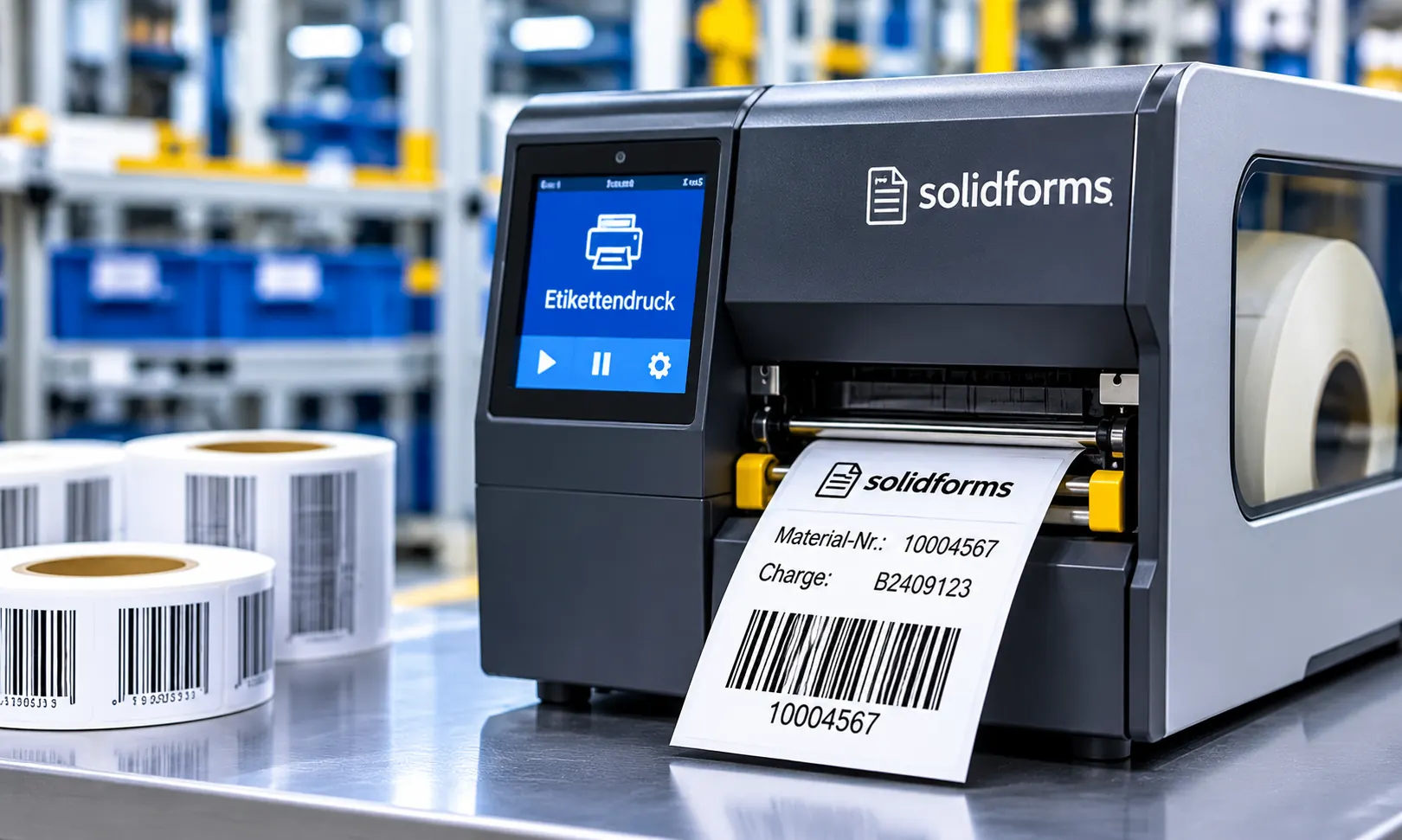
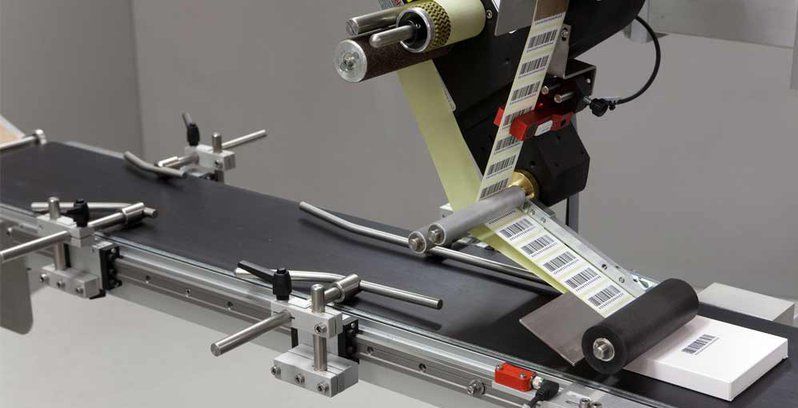
Many companies develop all their forms and labels in SAP®. Delivery notes, invoices and packing lists for laser printers are created using Adobe Forms, for example. Product and shipping labels for thermal-transfer printers are often produced using a label management solution integrated with SAP®.
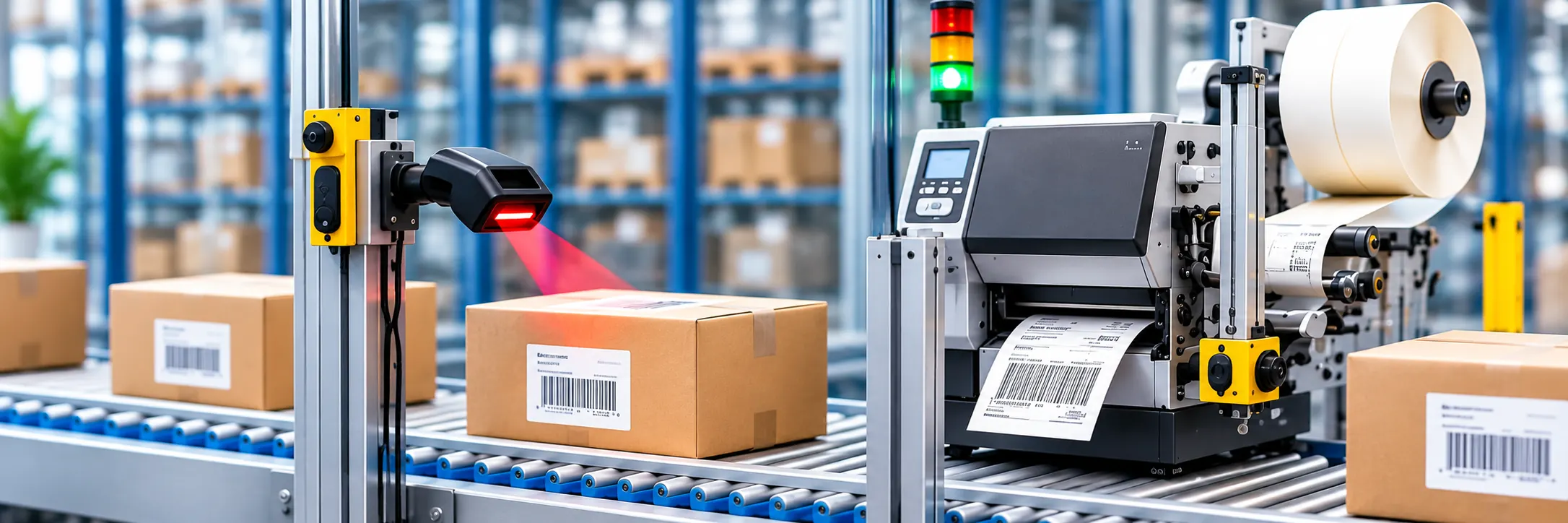
Print data is therefore prepared centrally in SAP®. In warehousing, shipping and production, however, the actual printing process is often triggered by external control software or a programmable logic controller (PLC).
A scanner identifies the package on the conveyor and sends its identifier to SAP® through an interface. Depending on the process, SAP® then generates a delivery note, invoice, packing list, product label or shipping label. Paper documents are placed inside the package, while labels are applied to the outside using print engines and applicators.
The key question is: How can we ensure that the print job being produced belongs to the package currently at the printer?
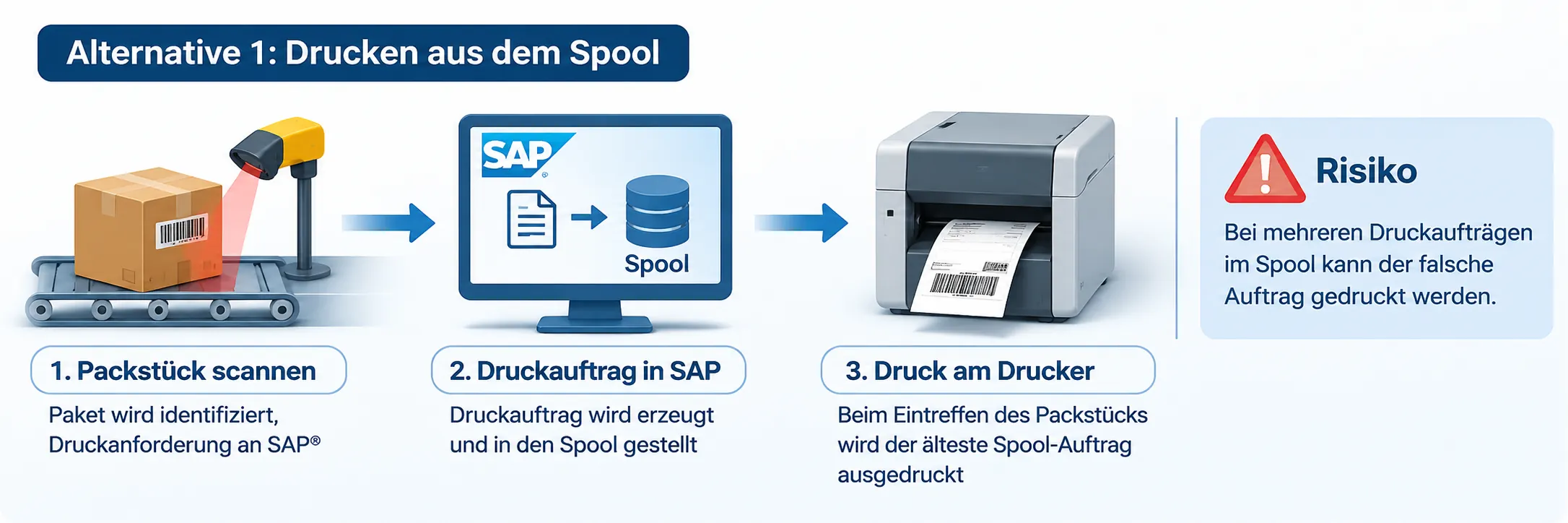
Option 1: Printing from the SAP® Spool
Once the package has passed the first scanner, the subsystem requests output from SAP®. SAP® creates the print job and places it in a print queue. When the package reaches the printer, the next queued job is printed—in this particular setup, typically the oldest one.
Where Does the Risk Arise?
As long as only the correct print job is waiting in the queue and the sequence is maintained precisely, this approach often works without problems. It becomes critical when several jobs accumulate or a disruption breaks the connection between a job and its package.
- Program errors or an ABAP short dump during processing
- Network failures or an interrupted interface
- Stops or delays between the scanner and the printer
- Misdirected print jobs, for example from a test system
If the system simply prints the next job in the queue, the wrong delivery note may be placed in a package or an incorrect label may be applied. If the error is discovered too late, numerous packages may already be affected. In a high-bay warehouse, this can lead to extensive inventory corrections, shipping delays and substantial costs.
Assessment from project experience: Assigning print jobs solely by queue order, without checking the package identifier, is not sufficiently fail-safe for critical automated packaging processes. The problem is not the SAP® spool itself, but the absence of a reliable, explicit link between the print job and the package.Option 2: Store and Retrieve Each Print Job by a Unique Identifier
In this approach, the first scanner also reports the package to SAP®. SAP® prepares the print job, but does not release it solely according to queue order. Instead, the job is made available in persistent storage, such as a directory on a print server or a computer at the printing station.
The filename or a unique lookup key contains the package number. This makes it possible to associate the prepared print job with a specific package.
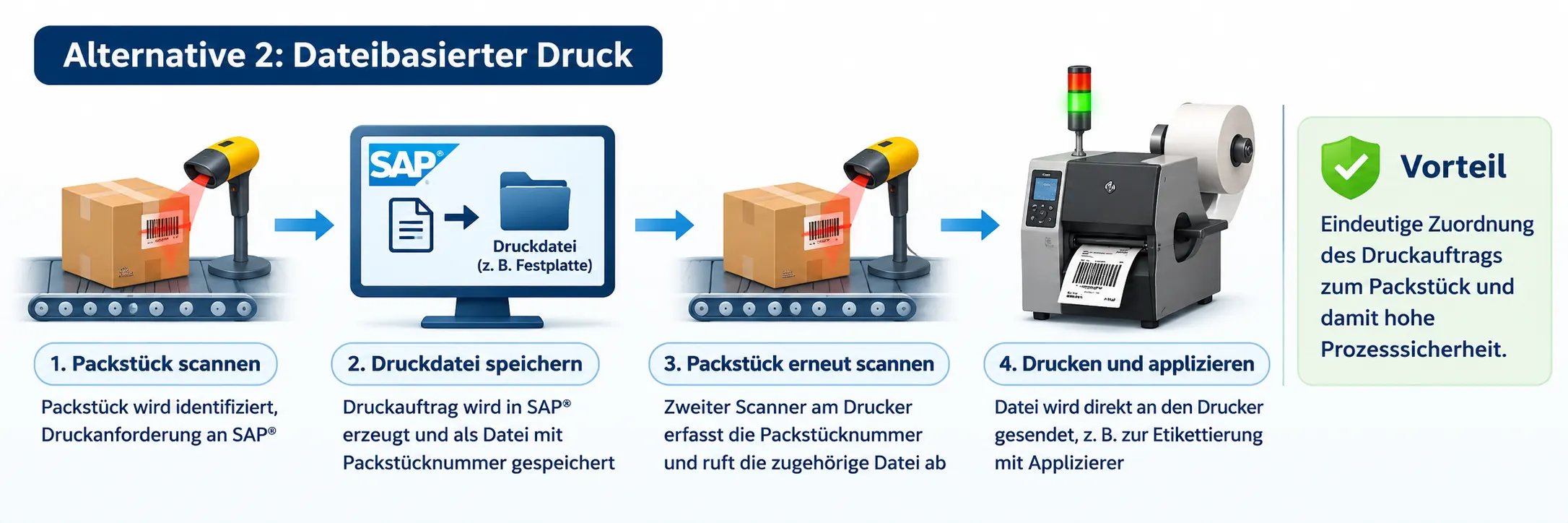
When the package reaches the printing station, a second scanner reads its identifier again. The local controller retrieves the matching print job and sends it to the printer or label applicator. Older installations may use a local printer port for this handoff; modern systems use suitable printer interfaces or print services.
Why Is This Architecture More Robust?
Print release no longer depends on whichever job happens to be next in a queue. Instead, the system explicitly requests the file whose identifier matches the package just scanned. If the matching job is missing, the line can stop or issue a controlled error message rather than printing a different document without verification.
The technical effort is greater: in addition to the SAP® interface, the solution requires reliable file storage, a second identification step and local print control. For high-volume operations and critical shipping processes, however, this investment can quickly pay off.
Comparing the Two Approaches
Criterion Sequential spool printing Targeted retrieval by package ID Job assignment Based on queue order Based on a unique package identifier Implementation effort Lower Higher Risk during disruptions Jobs can become misaligned without additional checks Targeted retrieval reduces the risk of mix-ups Additional components May not be needed, depending on the setup Storage, print control and a second scan Suitable for Non-critical output or processes with additional safeguards Automated packaging processes requiring reliable identity matching Additional Considerations for Implementation
The file-based solution also requires careful engineering. This includes unique identifiers, files that are released only after they have been fully written, appropriate permissions, defined error handling and confirmation that a print job has actually been processed. For especially critical labels, verifying the printed barcode may provide an additional safeguard.
The decision should therefore not simply be “spool or hard drive?” but rather: How can the correct print job be uniquely identified, made available securely, printed and verified?
Conclusion: Process Reliability Starts with the Print Architecture
For highly automated warehouse and packaging operations, I recommend an architecture that retrieves print jobs using the package identifier and checks the match before printing. Simply processing jobs in spool order without verifying package identity introduces avoidable risks.
The right technology for a specific project depends on the SAP® system, printer landscape, control software, throughput and safety requirements. What matters most is a reliable connection between the business document, the package and the physical output.
Related Topics
- SAP® Label Printing & Label Management
- Label Printing in SAP®
- SAP® Label Management
- SAP® Forms Development with Adobe Forms
- SAP® Output Determination or S/4HANA Output Management?
Want to Make Your SAP® Printing Processes More Reliable?
solidforms helps you design and develop SAP® forms, label printing and label management solutions, including integration with external printing and packaging systems.
Discuss Your Project with solidforms -

Activate or deactivate MS Word as text editor in SAP
[av_textblock size=” font_color=” color=” av_uid=’av-5wixb9h’]
Since SAP ECC 6.0, MS Word can be used as text editor for capturing SAP Script or Smart Form texts. In more recent releases, MS Word is already set as default text editor. -

Creating Adobe PDF forms in the WebUI of the SAP CRM
The SAP CRM system is in print form in contrast to other SAP systems, such as SAP EWM, currently exclusively on the printing of forms aligned with Smart Forms. In Customizing you can in the SAP CRM standard only forms and methods for printing of smart deposit forms.